 PasteFerry
 / Themes guide
Change it, make it,
or let an AI make it.
From 2.10, PasteFerry has themes: Default and Pixel are built in, you can duplicate one and make it yours, or ask an AI to design one. A theme applies only to the device you set it on.
Download 2.10Change the theme
- Open PasteFerry and go to Settings › Appearance.
- Click a theme under Built in or Custom. The window changes right away, and so does Quick Paste.
- Under Light and dark, choose Match system, Light or Dark.
- With a pixel theme you can also turn on Scanlines, faint CRT lines over the whole window.
- On Android, choose in the app’s own Settings › Appearance; computers and phones don’t affect each other.
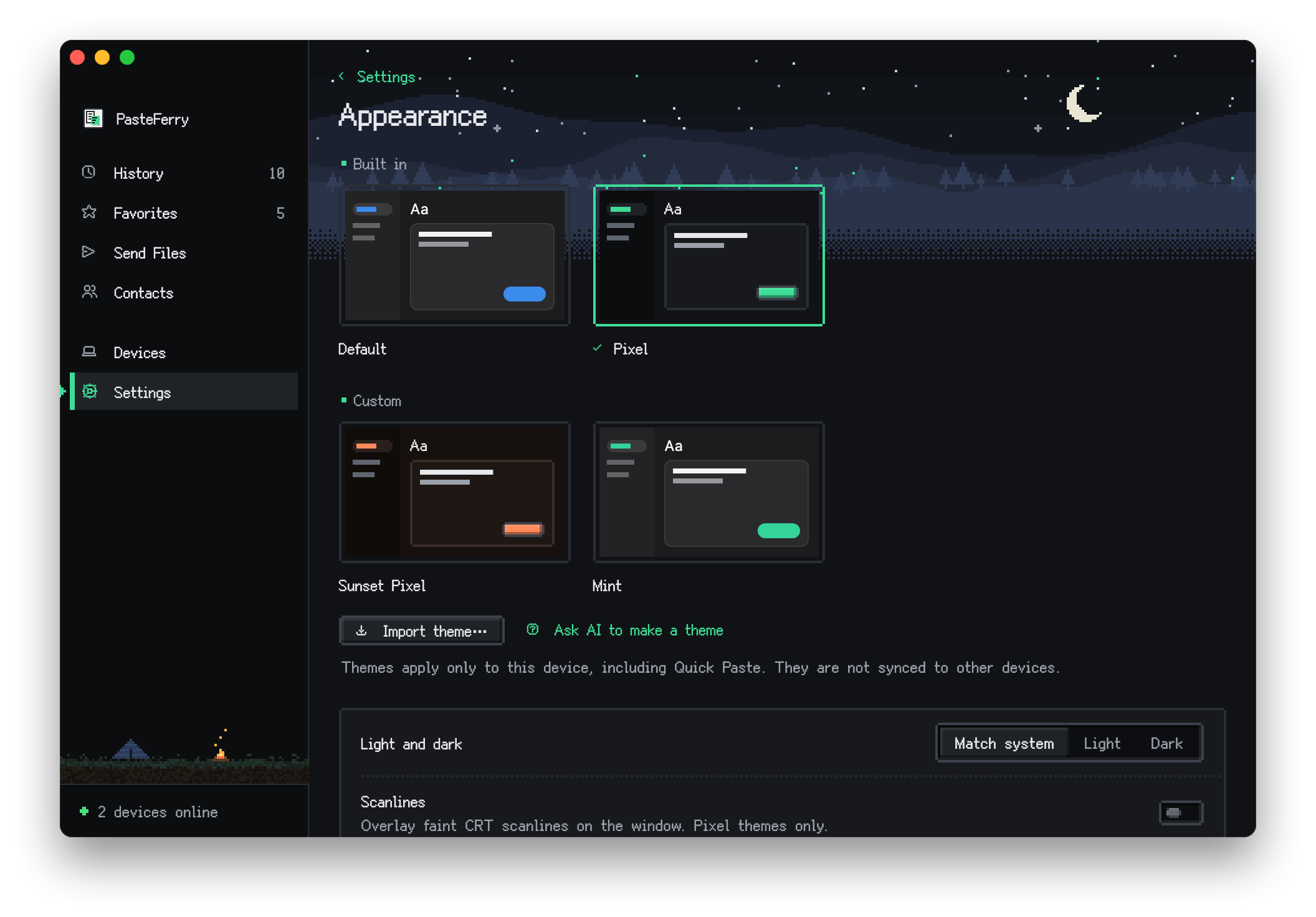
The two built-in themes
- Default: The quiet, system-style look PasteFerry has always had.
- Pixel: Bitmap type, notched borders and bevelled buttons, graphite and paper palettes with pixel green. A night or daytime scene up top, a paper plane while sending and a burst of stars when it arrives.


Make your own theme
The easiest way is to duplicate a built-in theme and change it:
- In Settings › Appearance, hover over a theme, click ⋯ and choose Duplicate. The copy appears under Custom.
- In the copy’s ⋯ menu, choose Export… to save a
.pasteferry-theme.jsonfile. - Change the colors, name and so on in any text editor (the format is described below).
- Back on the Appearance page, click Import theme… and choose the file. A theme with the same id is replaced, and the imported theme is applied.
- To remove a custom theme, choose Delete theme in its ⋯ menu. Built-in themes can’t be deleted.
Text contrast is checked when a theme is saved. Hard-to-read colors are pointed out, but you can still save. Theme files can be shared: the other person just imports it.
Use a background image
- Open Settings › Appearance, scroll to Background image, click Choose Image… and pick a JPEG, PNG or GIF.
- The image fills the window behind the sidebar and pages, and the sidebar and lists become translucent. If a built-in theme is in use, a copy is made first; the built-in theme itself stays the same.
- Blur, Scrim and Panels have three steps each. Use image colors takes the accent color from the image, and Also show in Quick Paste shows it there too.
- Click Remove to go back. On Android, pick a photo under Settings › Appearance › Background image.
Text always stays readable: PasteFerry works out how strong the scrim must be for the theme's text colors on this image and never shows it lighter. Dark images with dark mode, and light images with light mode, show the most of the picture.


Change the scenery
- The scenery is the wide picture at the top of pages and the small one at the bottom of the sidebar. The pixel theme draws a pixel landscape and a small camp there; other themes have none.
- Under Settings › Appearance › Scenery, click Choose Image… next to Page header or Sidebar bottom to use your own pictures, with any theme. A scrim is added under the page title so it stays readable.
- Reset brings back the original; turn off Show scenery to hide both. Scenery is hidden while a background image fills the window.
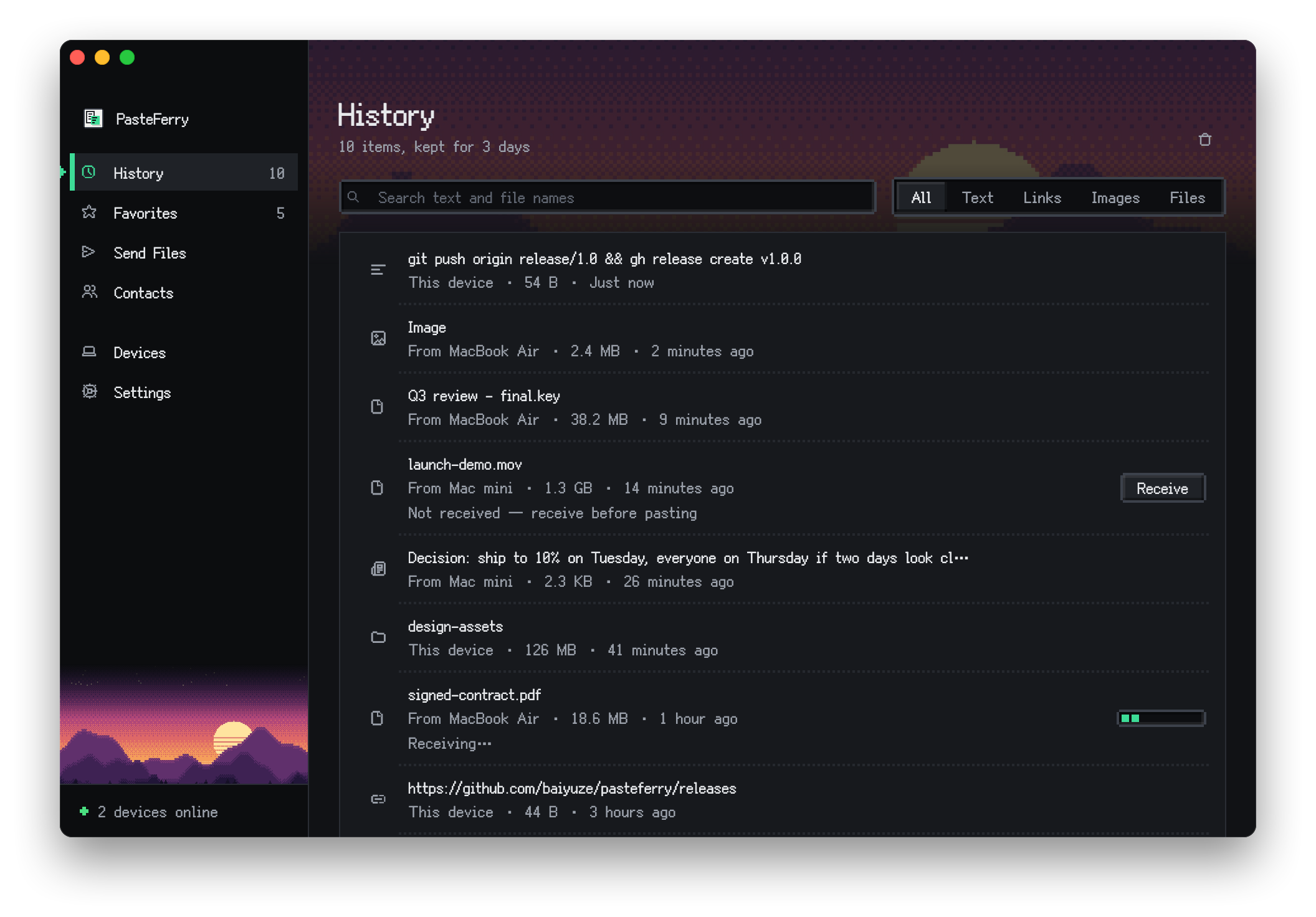
What a theme file looks like
A theme is a JSON file. Write only what you want to change; everything else comes from the theme named in base. This one starts from Pixel and changes the accent and a few backgrounds:
{
  "schema": 1,
  "id": "sunset-pixel",
  "name": { "zh-Hans": "落日像素", "en": "Sunset Pixel" },
  "base": "pixel",
  "modes": {
    "dark": { "accent": "#FF8A5B", "background": "#16110F", "surface": "#1E1714" },
    "light": { "accent": "#C2410C" }
  }
}
Common fields
id- The theme’s identifier: lowercase letters, digits and
-. It can’t bedefaultorpixel. name- The name in each language, such as
zh-Hans,zh-Hant-TW,zh-Hant-HK,enandja. base- The theme to start from:
default,pixelor another custom theme. modes.light/modes.dark- Colors for light and dark, as
#RRGGBBor#AARRGGBBwith alpha. Common ones:accent,background(content area),sidebar,surface(groups and dialogs),border,text,textDim,textFaintandonAccent(text on the accent). typography- Fonts:
familyissystemor the built-in pixel fontFusionPixel. shape- Shapes:
cornerisroundorpixel(notched), plus radii, border width and shadow style. motion,icons- Motion
smooth/stepped/reduced; iconssystem/pixel. background- Window background image:
image(user:<sha256>after importing),blur,scrim,surfaceOpacity(panel opacity),scope(which windows show it),accentFromImage. scenery,scene- Scenery on/off, and your own pictures:
scene.header(page header) andscene.sidebar(sidebar bottom), with optionalheaderDarkandsidebarDarkfor dark mode.
The full format and where each color is used: design/themes.md
Let an AI make a theme
PasteFerry includes an MCP server, pasteferry-cli mcp. Add it to an AI app that supports MCP, such as Claude Desktop, Claude Code or Cursor, and describe the look you want in one sentence. The AI reads the theme format, picks colors, checks contrast, then saves and applies the theme.
1. Find pasteferry-cli
- Mac
/Applications/PasteFerry.app/Contents/Helpers/pasteferry-cli(with Homebrew, justpasteferry-cli)- Windows
%LOCALAPPDATA%\Programs\PasteFerry\pasteferry-cli.exe- Linux
- deb:
/usr/bin/pasteferry-cli; tar.gz:PasteFerry/pasteferry-cliin the extracted folder
Or copy the ready-made configuration for this computer from Settings › Appearance › Ask AI to make a theme.
2. Add it to your AI app
Claude Desktop (Settings › Developer › Edit Config) and Cursor (~/.cursor/mcp.json) use the same configuration. On a Mac:
{
  "mcpServers": {
    "pasteferry": {
      "command": "/Applications/PasteFerry.app/Contents/Helpers/pasteferry-cli",
      "args": ["mcp"]
    }
  }
}
For Claude Code, run in a terminal:
claude mcp add pasteferry -- /Applications/PasteFerry.app/Contents/Helpers/pasteferry-cli mcpRestart the AI app after changing its configuration. Keep PasteFerry running: the AI changes themes through its background service on this computer.
3. Say what you want
- “Make me a cyberpunk theme with neon pink and deep purple, then apply it.”
- “Start from the Pixel theme and make a sunset version with a warmer dark background.”
- “The gray text in my current theme is hard to read. Make it lighter.”
- “Export my theme so I can see it, then make a light version.”
- “Use ~/Pictures/beach.jpg as the background and match the colors to the photo.”
- “Replace the pixel theme's header landscape with ~/Pictures/mountains.png.”
What the AI can do
- list themes and read a theme in full;
- read the theme format: where each color is used and the contrast it needs;
- check a theme without saving it, to find colors with too little contrast;
- save, apply and delete custom themes, and switch light and dark;
- Import a picture from this computer as a window background or scenery, and analyze its brightness and main colors.
What it can’t do
The MCP server runs only on this computer and opens no network port. It can read and write themes and background images only: it can’t see your history, devices or friends, or change other settings. Background images must be local files; nothing is downloaded from the internet.
Questions
Are themes synced to my other devices?
No. A theme applies only to the device you set it on. To use the same theme elsewhere, export it and import it there.
The AI made a mess of my theme. How do I go back?
Choose Default or Pixel in Settings › Appearance. Delete custom themes you don’t want.
Importing says some text may be hard to read.
Some text and background colors have low contrast. Lighten or darken those colors as suggested, or ask the AI to fix them.
Do older versions support themes?
You need 2.10 or later. The device protocol is unchanged, so old and new versions still work together.
Will text be hard to read on my picture?
No. The scrim strength is worked out from the theme's text colors and is never lighter than needed. For a busy picture, raise the blur or panel opacity.
More:Let an AI make a theme (full guide) · Theme format and design · MCP tools