 PasteFerry
Links get their own tab
Text, links, images, files: one click to filter.
PasteFerry features
One clipboard for your Mac, Windows and Linux computers.

⌘CCtrl+C here, ⌘VCtrl+V there. No shared account needed.
Pastes cleanly into plain-text fields.
Larger items on demand. The limit is adjustable.
Pause everything, or just one computer.
Computers near and far are on the radar. Drag files onto one to send them. No cloud drive, and your history stays clean.

Multi-GB videos or folders with thousands of files.
Resumes after a dropped connection or sleep. Every file is verified.
Saved to Downloads by default, one click to show.
Works across networks; relaying through Service is limited to 100 MB a day. Both computers need 2.5 or later.
New in 2.6
Add them as a contact, no pairing needed. Files arrive once they accept, with an optional note.

See who sent what before accepting, or auto-accept people you trust.
No one, contacts only, or everyone on your network for 10 minutes.
Contacts never see your clipboard, history or devices.
On different networks, both turn on Service. Both need 2.6 or later.
New in 2.8
Use the Android app to send and receive batches of photos and files with a computer, then save or share them. Prefer no installation? Scan a code for clipboard history, sending content and separate file transfers in the browser.

for history and separate file transfers.
batches, with save and share.
; keep the web page open.
There is no iPhone or iPad app: iOS does not let apps read the clipboard in the background, and distributing one needs a certificate. Those devices use the web page.
New in 2.10
Pick a theme in Settings › Appearance: Default and Pixel are built in. Duplicate one and make it yours, or ask an AI to design one. Light, dark or match the system.
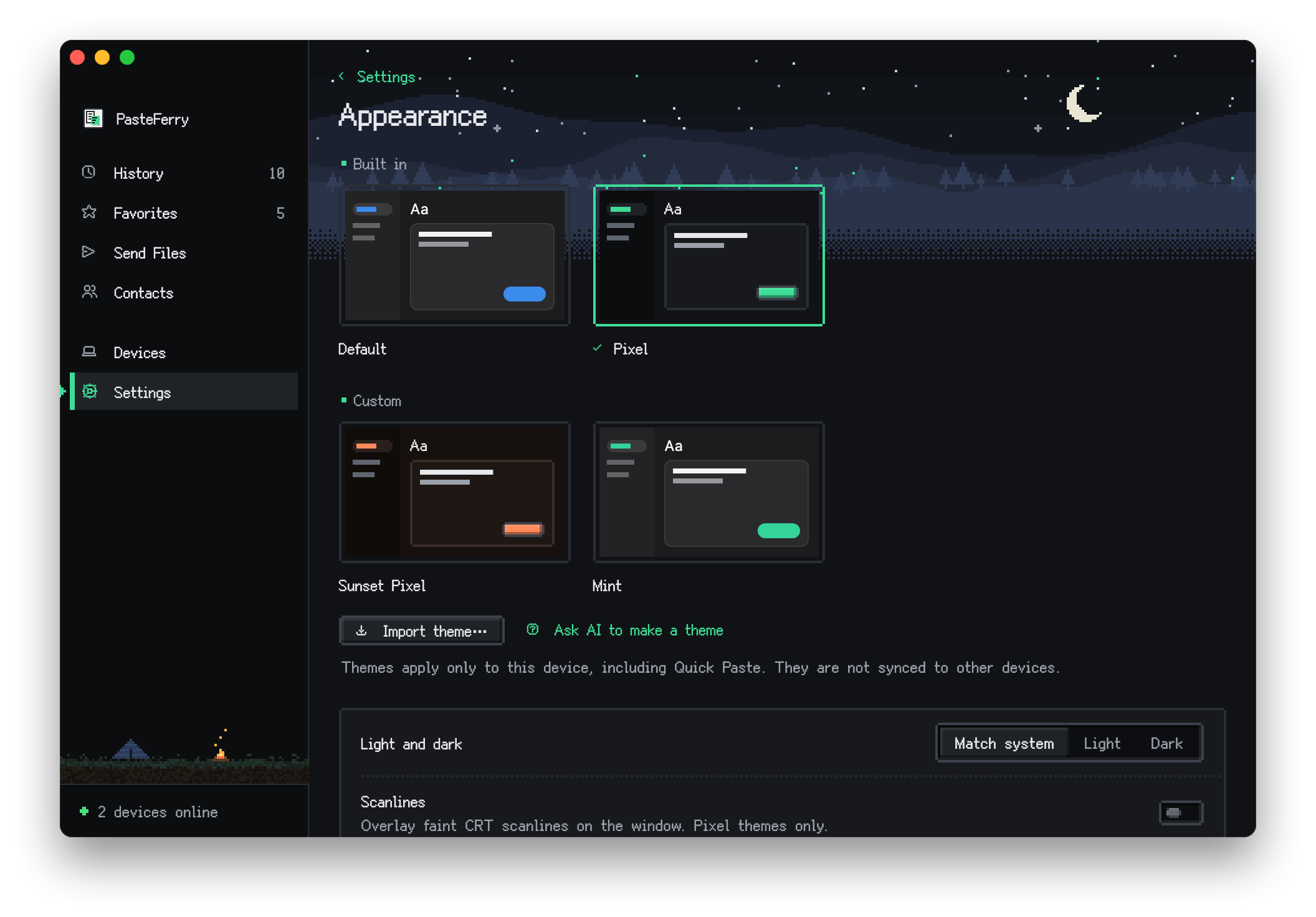
Bitmap type, notched blocks and bevelled buttons. A night or daytime scene up top, a paper plane while sending and a burst of stars when it’s done.
Duplicate a built-in theme, import or export theme files. You’re warned when text would be hard to read.
Add pasteferry-cli mcp to Claude, Cursor and others, then say “make me a cyberpunk theme”. It’s created and applied.


Themes apply only to the device you set them on (on a computer, the main window and quick paste); they aren’t synced. The Android app has its own Settings › Appearance. Pixel themes can add CRT scanlines. The AI can only read and write themes, never your history or devices.
Press the shortcut in any app, pick an item, and it’s pasted at the cursor.
Hi all,
The weekly sync moves to Thursday 3 pm. Link:
Meeting link: https://meeting.example.com/j/8823
Works in any app.
Search text and file names, or press ⌥1–9Alt+1–9.
⇧↩Shift+Enter for plain text, ⌘↩Ctrl+Enter to copy only.
You can change or turn off the shortcut. Pasting for you on a Mac needs Accessibility permission.
Star the things you reuse. They’re kept as a separate copy and never expire.

History expires; favorites stay.
Changing or deleting the original doesn’t affect it.
Also in quick paste; press ⌘DCtrl+D to add.
Text, links, images, files: one click to filter.
Hover to see the whole item.
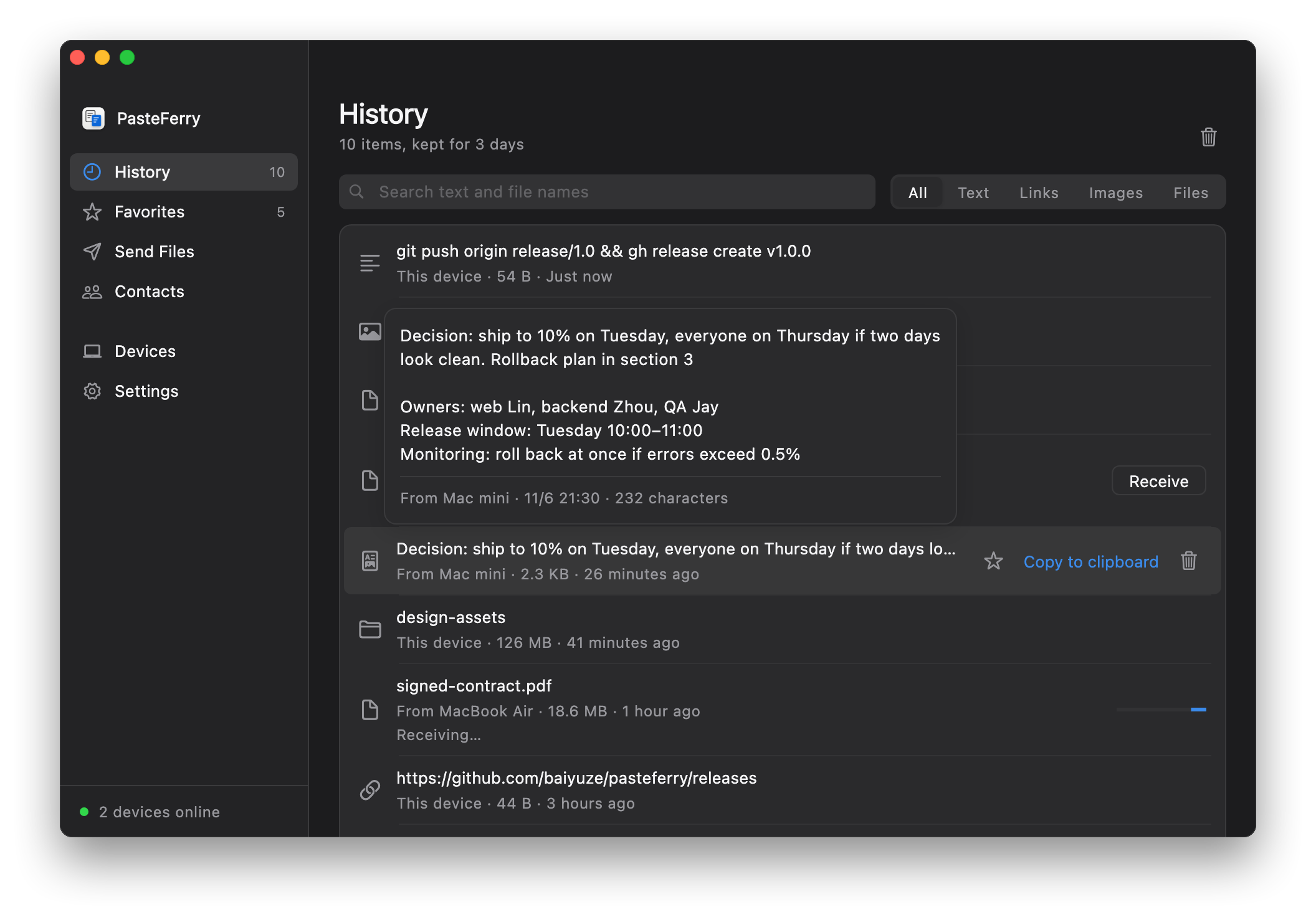
Search by text or file name. Kept 3 days by default, up to 30.
Over 50 MB syncs as a record first; click Receive to transfer.
Copy a folder, paste the same folder.
Characters Windows doesn’t allow become full-width look-alikes.
Same network: install and pair. Different networks: turn on Service.
No server. Enter a pairing code and you’re done.
Service, your own server, or Tailscale.
Verify fingerprints when pairing; the server never sees your content.
Version 2.10.2, free and open source. macOS 13 or later; Windows 10 and 11; Linux (x64 and ARM64). Android 9 or later; phones can also use the web page.
New here? Set it up in three steps →Like it? Star it on GitHub.
Star on GitHub